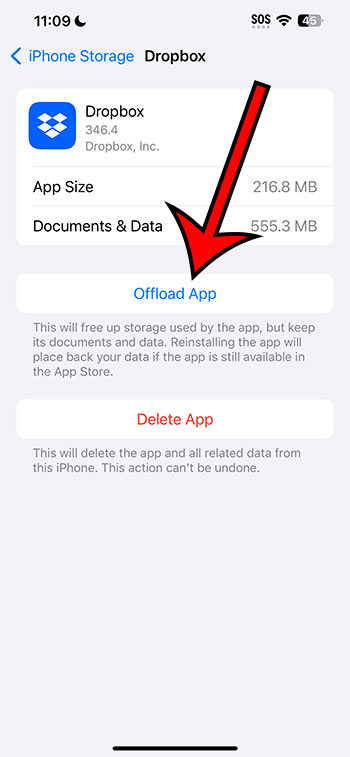
The “Offload App” feature on iPhone 14 allows users to free up storage by temporarily removing apps without losing their data. When space is needed, the app can be easily re-downloaded, and users can continue from where they left off.
So, you’ve got your hands on the shiny new iPhone 14, and while playing around with its settings, you stumble upon the “Offload App” feature. Wait, what’s that? you wonder. Well, fret not! We’re here to break it down for you, making sure you become an iPhone wizard by the end of this article.
Related: How to Clear the Safari Cache on an iPhone 14
The Basics: What is “Offloading”?
Offloading is like giving an app a mini-vacation. Instead of completely deleting the app, you’re just giving it a break, letting it chill out for a bit. It’s like putting your toys back in the toy box, but not throwing them away. They’re still there, ready for playtime again!
How the Feature Works
- Saving Space Without Losing Data When you offload an app, the iPhone removes the app but keeps its data and documents. So, when you re-download it, you can pick up right where you left off. Cool, right?
- Automatic vs. Manual Offloading The iPhone 14 gives you two options. You can manually offload apps, or you can let your iPhone decide. If you choose the automatic option, the phone will offload apps you haven’t used in a while when you’re running low on storage. Handy for those who like things to just work.
Pros of Offloading Apps
- Save Storage Space: Especially useful if you’ve got the 64GB version. More space for those cute dog photos!
- Preserve Data: No more starting from scratch. Your data waits patiently for the app’s return.
- Optimize Performance: Fewer apps might mean smoother sailing for your device.
Cons of Offloading Apps
- Might Forget About The App: Out of sight, out of mind? You might forget about that app you offloaded last month.
- Re-Downloading Hassle: If you’re in an area with sketchy Wi-Fi, getting the app back can be a bit of a wait.
- Some Features May Not Work: For instance, widgets related to an offloaded app won’t display until the app’s back.
Additional Information
- The Icon Remains: The offloaded app’s icon stays on your home screen, but with a tiny cloud symbol next to it. This cloud is a reminder that the app is in the digital heavens, waiting for its return.
- Doesn’t Affect Your Purchase: Even if an app was paid, offloading it doesn’t mean you have to buy it again. Just tap, and it’s back!
In Conclusion
The “Offload App” feature on the iPhone 14 is a smart solution for those who juggle with storage issues but don’t want to lose their app data. While it has its pros and cons, understanding how it works lets you make the most of your device. So, next time you’re tight on space, remember – offloading might just be the answer!
FAQs
- Does offloading apps save a lot of storage?
- It depends on the app size. Bigger apps save more space when offloaded.
- How do I re-download an offloaded app?
- Just tap on its icon, and it’ll download again.
- Will I be charged for re-downloading a paid app?
- No, once you’ve bought an app, re-downloading is free.
- Can I choose which apps to offload?
- Yes, you can manually select apps to offload or let iPhone decide.
- Does offloading affect my app data, like game progress?
- No, all your data remains intact.