You can delete the cache from your iPhone 14 by going to Settings > Safari > Clear History and Website Data > then adjusting the settings and tapping Clear history.
Our article continues below with more information about clearing data from the Safari browser.
You can also check out this video about how to clear Safari cache on iPhone 14 for more on this topic.
Introduction
Imagine this: you’re comfortably seated on your couch, iPhone 14 in hand, ready to dive into the world of the internet. But suddenly, Safari seems a bit sluggish, or maybe a website isn’t loading properly. Sounds familiar? Well, I have the solution right here, and guess what? It’s simpler than you think!
The magic trick here is ‘clearing the cache.’ Think of the cache like a little backpack your Safari browser carries. Every time you visit a website, it saves bits and pieces to make loading that site faster the next time around. But like any backpack, it gets filled up over time, and sometimes it even holds onto old stuff that you don’t need anymore.
Clearing this cache will make your Safari run smoother and could even save some of your iPhone’s precious storage space. Ready to learn how? Let’s dive in.
Related: How to Enable Javascript on an iPhone 14
The Step-by-Step Guide to Clearing Safari Cache on iPhone 14
1. Let’s start at the beginning: Open the ‘Settings’ app. It’s the one with the gray gear icon, which you’ve probably seen a hundred times while scrolling through your apps.
2. Scroll down to the ‘Safari’ option: You’ll find this nestled between some other app names. Give it a tap.
3. Dive deeper into the menu: Here you’ll see a bunch of options. But don’t get overwhelmed! We’re focused on one thing today: the cache.
4. Find ‘Clear History and Website Data’: This is the golden button we’re looking for. A simple tap here is like giving Safari a fresh start. But before you press it, remember this will clear your browsing history too. If there’s a website you visited that you might want to come back to, make sure you’ve bookmarked it!
5. Adjust the settings: Here you can select the timeframe for which you want to clear the cache. You can also choose what to do with the tabs that are currently open.
6. Clear the cache: Now you just need to tap the Clear history button and you’re all set.
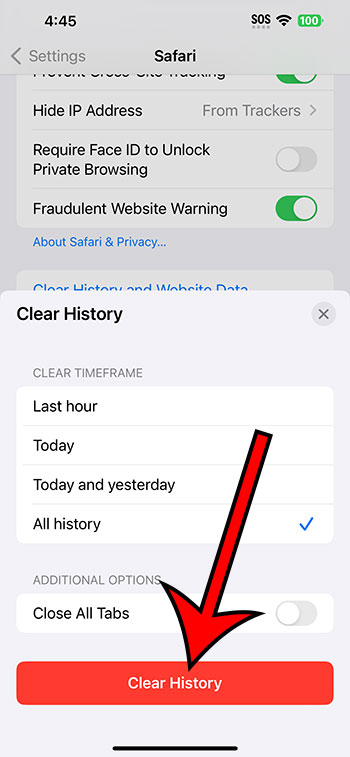
And voilà! Your Safari browser is now feeling lighter and fresher. It’s like giving it a mini-vacation so it can come back, recharged and ready to take you wherever you wish to surf on the web.
Video About Deleting iPhone Safari Cache
Why Clearing Cache Matters
You might wonder, “Do I really need to do this often?” The answer is, not necessarily. But every now and then, it’s a good idea. Here’s why:
- Speed: Like we said earlier, a cluttered cache can slow down your browsing speed. So if you’re the impatient kind (and let’s be honest, in today’s fast-paced world, who isn’t?), then this is something you’ll want to do.
- Fixing Glitches: Ever had a website that just won’t work right? Sometimes old data in the cache can cause websites to behave weirdly. Clearing it out can be like hitting a reset button.
- Privacy: If you’re using a shared device, or if you simply want to make sure your browsing activities remain your own little secret, clearing your cache can offer a touch of privacy.
Some Additional Tips
While clearing the cache is super helpful, there are a couple of other things you might consider for a smoother Safari experience:
- Turn on ‘Prevent Cross-Site Tracking’: This is another option in the Safari settings menu. Turning it on can prevent advertisers from tracking your activities across websites. Plus, it gives you an added layer of privacy.
- Limit the number of open tabs: Just like humans, Safari can get overwhelmed if it has to juggle too many things at once. Every once in a while, close those tabs you aren’t using. Trust me, your browser will thank you!
Conclusion
By now, you’re well on your way to becoming an iPhone 14 Safari expert. Remember, our gadgets work hard for us day in and day out. Every now and then, they need a little cleanup and TLC. Clearing your Safari cache is a quick and simple way to keep your browsing experience smooth and enjoyable. Happy surfing!