You can turn on Javascript on your iPhone 14 by going to Settings > Safari > Advanced > and then tapping the button to the right of Javascript.
Our article continues below with additional information about changing this setting in the Safari browser on your iPhone.
Introduction
Hey there, tech enthusiast! First off, can we take a moment to appreciate the beauty that is the iPhone 14? Apple really did pull out all the stops with this one. But, if you’re here, it’s probably not to marvel at its sleek design or the incredible camera – you’re looking to make sure JavaScript is enabled. Why? Maybe you’re looking to enhance your browsing experience, or perhaps you’ve stumbled upon a website that requires it. Either way, I’ve got you covered.
Before diving in, it’s important to note that JavaScript is a programming language that enables interactive web pages. It’s a part of most web browsers and allows for client-side scripts to interact with the user, control the browser, communicate asynchronously, and alter the document content that’s displayed.
By default, Apple’s Safari on the iPhone 14 (and most other versions, for that matter) has JavaScript enabled. But if you find yourself in the rare scenario where it’s turned off, or you’re just making sure everything is in check, follow this no-fuss guide. Trust me, you’ll be navigating your way through in no time!
If you prefer a video, then you can check out this how to enable Javascript on iPhone 14 guide instead.
Step-by-Step: Enabling JavaScript on Your iPhone 14
The steps in this section were performed on an iPhone 14 in the iOS 17 operating system.
These steps work in many other newer versions of iOS and on many other iPhone models, including the following:
- iPhone 14
- iPhone 14 Pro
- iPhone 14 Pro Max
- Unlock Your iPhone 14 – Start by unlocking your shiny iPhone 14. Swipe up, Face ID, passcode – whatever security measure you’ve set up. You’re in? Awesome!
- Head to the Settings App – Find that familiar silver gear icon on your home screen. Tap on it. This is where the magic happens.
- Scroll Down to Safari – As you scroll through your settings, you’ll come across a few different sections. Keep an eye out for the one that says “Safari.” It’s usually positioned below the “Books” and “News” settings. Found it? Perfect! Give it a tap.
- Find the “Advanced” Section – Once you’re inside the Safari settings, scroll all the way to the bottom. There, you’ll spot an option labeled “Advanced.” Tap on that. It’s not as intimidating as it sounds – I promise.
- Toggle JavaScript On – Under the Advanced settings, you’ll see an option for “JavaScript.” If the toggle next to it is grayed out, that means JavaScript is currently turned off. To enable it, simply tap the toggle. It should turn green. And just like that, you’ve enabled JavaScript on your iPhone 14!
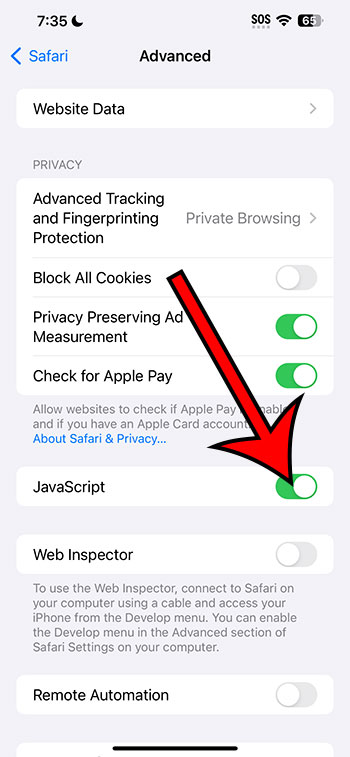
Now that you know how to enable Javascript on an iPhone 14, you will be able to adjust this setting whenever you wish to change whether or not websites can use Javascript on your phone.
Related: How to Create Bookmarks on iPhone 14
Video About Turning on Javascript
A Few Things to Keep in Mind
- Security Concerns: Some people turn off JavaScript due to security concerns. While these concerns aren’t unfounded, most modern websites are designed to be used with JavaScript enabled and will function best this way. Plus, Apple has robust security mechanisms in place to keep your device safe. Still, always ensure you’re browsing trusted sites.
- Browsing Experience: With JavaScript enabled, your browsing experience can be a lot more interactive and dynamic. However, if you find a website behaving oddly, it might be worth checking if toggling JavaScript off makes a difference.
- Updates & Changes: Technology is ever-evolving, and Apple is known for its regular updates. The steps mentioned above are accurate as of now, but should there be a significant software update in the future, you might want to check back in or do a quick search to ensure you’ve got the latest info.
Conclusion
There you have it – a straightforward guide to enabling JavaScript on your iPhone 14. I hope this chat made the process feel like a breeze. Technology can be a little tricky at times, but with the right guide and a dash of confidence, there’s nothing you can’t handle. Happy browsing, and remember: you’re now officially an iPhone 14 JavaScript whiz!