AirDrop is a feature on the iPhone 14 that allows quick and wireless file sharing between Apple devices. To activate, swipe into the Control Center, touch and hold on the wireless square at the top-left, tap on the AirDrop icon, and choose your preference. To deactivate, select ‘Receiving Off’. Enjoy seamless sharing without the need for internet!
Our guide continues below with more about AirDrop and using it to share files on your device.
You can also watch this video about how to enable or disable AirDrop on an iPhone 14 for more on this topic.
Introduction
So, you’ve got your hands on the shiny new iPhone 14, huh? You’re probably keen to dive into all its features and functions. But wait! Before you get lost in the endless sea of applications and settings, let’s tackle one of the most commonly used (and sometimes puzzling) features: AirDrop. Think of AirDrop as a magical bridge between your iPhone and other Apple devices. It’s like having a personal mailman who delivers photos, documents, and more in a snap! Let’s walk you through how to turn this feature on or off.
Related: How to Turn Off the iPhone 14 Flashlight
What is AirDrop?
AirDrop is Apple’s solution to help you share files wirelessly between Apple devices. Imagine you’re trying to send a funny meme to a friend’s iPhone, or perhaps a document to your MacBook. With AirDrop, it’s as easy as pie! No wires, no emails, just a few taps, and you’re good to go.
How to Activate AirDrop on iPhone 14
Step-by-step guide:
- Swipe into the Control Center: For this, simply swipe down from the top right corner of your screen. It’s where your battery icon resides. Easy, right?
- Touch and hold on the square at the top-left, which has buttons for Wi-Fi, Airplane Mode, and more.
- Find the AirDrop icon: It’s a blue circle with an upward-facing arrow inside it.
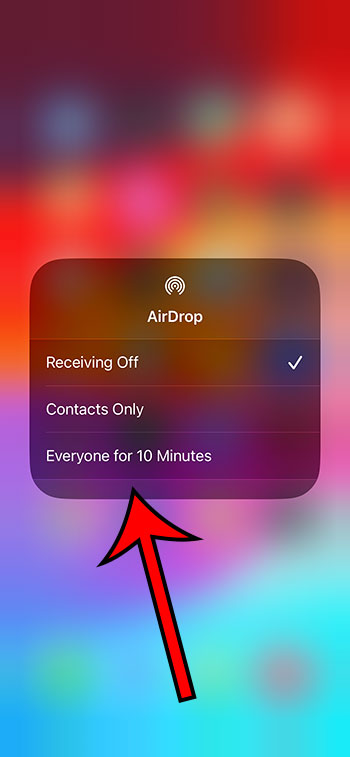
- Tap on it: A menu will pop up with options: Receiving Off, Contacts Only, and Everyone for 10 Minutes.
- Choose your preference: If you want to AirDrop with anyone nearby, select ‘Everyone for 10 Minutes.’ But if you’d prefer to keep things a bit more private and only share with your contacts, choose ‘Contacts Only.’ Not interested in using AirDrop at all? Go for ‘Receiving Off.’
How to Deactivate AirDrop on iPhone 14
Now, let’s say you’ve shared what you wanted to or, perhaps, you’re in a crowded place and don’t want strangers sending you unsolicited files. Time to turn AirDrop off.
Here’s how:
- Swipe into the Control Center. Yep, same starting point as before!
- Touch and hold on the top-left square again.
- Locate the AirDrop icon.
- Tap on it and select ‘Receiving Off’. Done! No more incoming AirDrops for you.
Video About Using the iPhone 14 AirDrop Feature
Pros of Using AirDrop
- Speedy Sharing: It’s faster than an excited puppy seeing its owner after a long day. Really, it’s that quick.
- No Internet Required: You don’t need Wi-Fi or cellular data. It’s all done via Bluetooth and Wi-Fi Direct.
Cons of Using AirDrop
- Apple-Only: Sorry Android buddies, this feature is exclusively for Apple devices.
- Unsolicited Shares: If you leave it open to ‘Everyone,’ you might get files from strangers. And not everyone has good taste in memes.
In Conclusion
AirDrop on the iPhone 14 is a nifty tool for those who love seamless sharing between devices. Whether you’re team ‘Always On’ or ‘Selective Sharing,’ understanding how to control AirDrop ensures you’re always in the driver’s seat. So, go on, spread the joy (or memes)!
FAQs
- Is AirDrop safe to use? Absolutely! It uses encryption to keep your shared files private.
- Can I use AirDrop with my older iPhone? Yes, if it’s an iPhone 5 or later model.
- Why can’t I see the other person’s device on AirDrop? They might have their receiving set to ‘Off’ or ‘Contacts Only’. Check with them.
- Does AirDrop use my cellular data? No, it operates via Bluetooth and Wi-Fi Direct, so no data charges apply.
- Can I AirDrop to my Mac? Yes, as long as it’s a 2012 or later model running macOS Yosemite or newer.