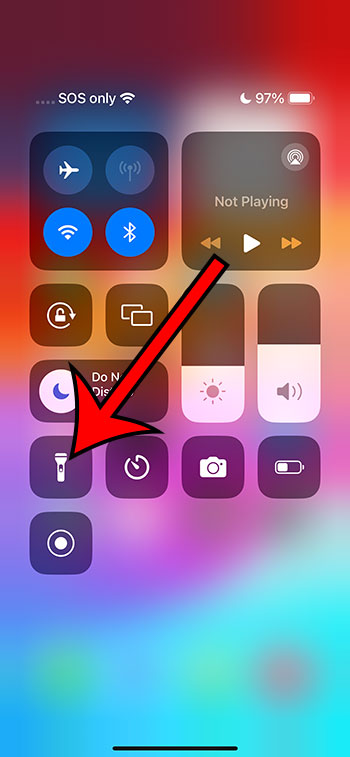
You can shut off the flashlight on your iPhone 14 by swiping down from the top-right corner of the screen, and then tapping the flashlight button.
Our article continues below with more information about turning off the iPhone torch, including a video of this process.
You can also click here to see the video about how to turn off the flashlight on iPhone 14 on YouTube.
Introduction
Ladies and gentlemen, gather around! Today, we embark on an extraordinary journey deep into the world of technology. Our quest? To master the simple yet often overlooked art of turning off the flashlight on the formidable iPhone 14. Now, while it might seem like child’s play to some, this task, when done with finesse, can be as satisfying as conquering a video game or mastering a challenging puzzle.
Let’s set the scene: It’s a dark and stormy night, and you’ve just used your iPhone 14’s flashlight to find your way through a power outage. But, once safe and sound, you realize – oh no! – you don’t know how to turn it off. No worries, intrepid adventurer. By the end of this tale, you’ll be an undisputed flashlight-off maestro.
Overview of the iPhone 14 Flashlight
Before we dive into the intricacies of shutting off this beacon of light, let’s appreciate its significance. Apple, the tech giant behind the iPhone, equipped the iPhone 14 with one of the most powerful flashlights known to humankind. It’s not just a tiny bulb at the back of your phone; it’s a symbol of human ingenuity and a testament to how far we’ve come in the world of technology.
Related: How to Turn Off the Inverted Camera on an iPhone 13
The Control Center Solution
You’ve summoned the light, but now you wish to dispel it. The quickest way to do so? Swipe into your Control Center! Here’s how:
- Wake up your iPhone 14 by tapping its screen or pressing its side button.
- Swipe down from the top-right corner of the screen to open the Control Center. If you are using an iPhone with a Home button, then you need to swipe up from the bottom of the screen instead.
- Voila! The Control Center will present itself like a treasure chest of icons. Among these, you’ll spot the flashlight symbol, glowing in acknowledgment of its active status.
- Tap this glowing icon, and like magic, darkness shall return.
Alternative – The Lock Screen Shortcut
“But wait!” you might exclaim, “I’ve heard tales of another way!” And you would be right. The iPhone 14, in its majestic wisdom, also allows you to deactivate the flashlight straight from the lock screen. If you press the flashlight icon on the lock screen – the very same one you pressed to turn it on – your device will understand your desire for obscurity and oblige immediately.
Video About Shutting Off the Flashlight
Sometimes The Flashlight Goes On By Accident
Sometimes, in our enthusiasm or sheer haste, we accidentally summon the flashlight. Maybe your iPhone brushed against something in your bag, or perhaps it got nudged in your pocket. In these cases, remember: there’s no need for panic. Our methods from Chapters 2 and 3 are at your rescue, waiting to guide you back to the shadows.
Maintaining Flashlight Etiquette
Now that you’re a certified flashlight aficionado, it’s essential to remember flashlight etiquette. It’s thrilling to have such power at our fingertips, but with great power comes great responsibility. Ensure that your flashlight doesn’t disturb others, especially in places like theaters, during meetings, or in any setting where its bright beam could be more of an annoyance than an aid.
Conclusion
We’ve journeyed far and wide across the vast plains of the iPhone 14’s interface, braving the depths of the Control Center, and dancing with the icons of the lock screen. We’ve learned not only how to harness the power of the flashlight but also how to respectfully put it to rest.
As with many things in life, the magic often lies in the journey, not the destination. By mastering the flashlight’s off switch, you’ve gained more than just a tech skill; you’ve proven to yourself that no challenge, no matter how illuminated, is too great for you to overcome.
And so, the next time you find yourself bathed in the unexpected glow of your iPhone 14’s flashlight, smile. For you, dear reader, are no longer in the dark about turning it off.