If you frequently use the Instagram app on your iPhone, you may rely on alerts to alert you when someone interacts with one of your posts or when someone you follow adds new content.
These notifications may relieve you of the need to constantly check the app for new items, allowing you to use other apps or do chores.
If you aren’t receiving any notifications, follow this article to discover how to enable Instagram notifications on iPhone 13.
You can also watch this video for more information.
How to Enable Instagram Notifications on an iPhone
- Select Settings.
- Go to Notifications.
- Select Instagram.
- Allow Notifications should be turned on.
Our article continues below with further information, including screenshots, on how to activate Instagram notifications on iPhone 13.
Related: Our guide about how to reset network settings on iPhone 13 will help you if you are experiencing Wi-Fi or cellular problems.
After installing and launching the Instagram app on your iPhone, you may rely on the app’s alerts to notify you of new content and information.
However, if you do not receive any of these messages, your experience with the service may suffer.
Our guide below will walk you through some of the steps you may take on your iPhone to ensure that all Instagram alerts are turned on.
How to Change the Notification Settings on the iPhone Instagram App
This section’s processes were carried out using an iPhone 13 running the iOS 16 operating system.
Step 1: Open the Settings app on the iPhone.
Step 2: Navigate to the Notifications tab.
Step 3: Navigate to Instagram.
Step 4: To enable alerts, tap the button next to Allow Notifications.
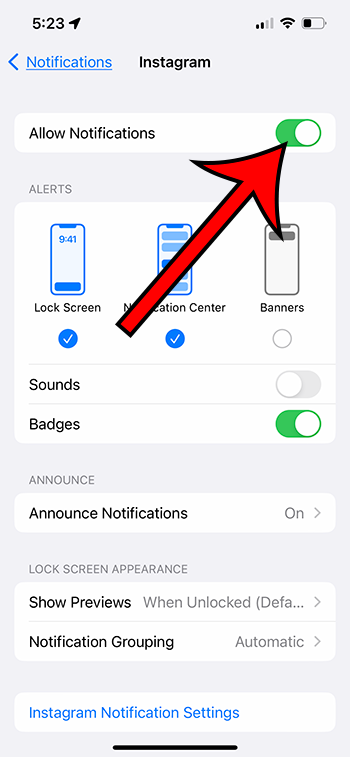
You may also alter the app’s individual notification settings from this menu. The following customization options are available:
- Alerts
- Sounds
- Badges
- Announce Notifications
- Show Previews
- Notification Grouping
There is also an Instagram Notifications Settings option, which will take you to the Instagram app’s Notifications menu, where you can alter some other notification settings.
You will be able to enter this menu and adjust the options if you feel that a setting is incorrect or turned off now that you know how to enable Instagram notifications on iPhone 13.
Although the methods above discussed adjusting these settings through the iPhone menus, there are other notification options within the Instagram app.
How to Modify Instagram Notifications
If you’ve toggled everything in the Notifications menu on your iPhone to the correct position and you’re still not receiving notifications, there could be a problem with the Notification menu for the Instagram app itself.
It’s worth noting that the menu seen below is the same one you’d get if you clicked the Instagram Notification Settings button at the bottom of the Settings > Notifications > Instagram menu.
Step 1: Visit Instagram.
Step 2: Select an icon for your profile.
Step 3: Tap the three lines in the upper-right corner, then choose Settings.
Step 4: Navigate to Notifications.
Step 5: Modify the options in this menu.
This app provides a plethora of Instagram notification choices. These are some examples:
- Pause All
- Quiet Mode
- Posts, Stories, and Comments
- Following and Followers
- Messages
- Calls
- Live and Reels
- Fundraisers
- From Instagram
- Email notifications
- Shopping
It’s extremely easy to have one of these parameters set incorrectly and have certain types of notifications disabled, so if you’re still having issues with Instagram notifications, you may need to check all of them.
If you’ve tried everything and are still not receiving Instagram notifications, you may need to try a few more things.
Restart your iPhone by pressing and holding the Volume Up and Power keys simultaneously, then dragging the slider to the right. After turning off the iPhone, press and hold the Power button until you see the white Apple logo.
Check Do Not Disturb – If you’ve ever utilized the Do Not Disturb option or set up a schedule, it’s possible that this is causing problems with your Instagram alerts. You can check the options for preventing Instagram notifications by going to Settings > Focus > Do Not Disturb.
Uninstall and reinstall Instagram – If nothing else works, delete and reinstall the app. You can do this by holding down the Instagram icon and selecting Uninstall App, then Delete.