The Settings menu on your iPhone offers a lot of different ways that you can format or customize the device.
You may have figured out how ot do things like change the ringtone or add an email address, but there are certain menus you might not explore until you start having issues.
One of these menus offers a handful of ways that you can reset things on the device.
Our tutorial below will show you how to reset the iPhone 13 network settings if you are having trouble with your cellular or wireless networks.
How to Do an iPhone 13 Network Reset
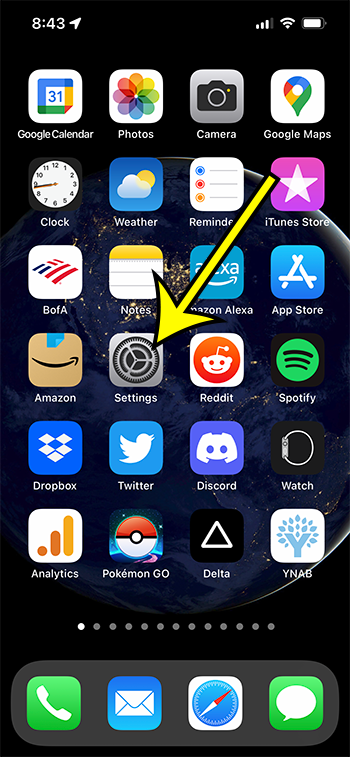
- Open Settings.
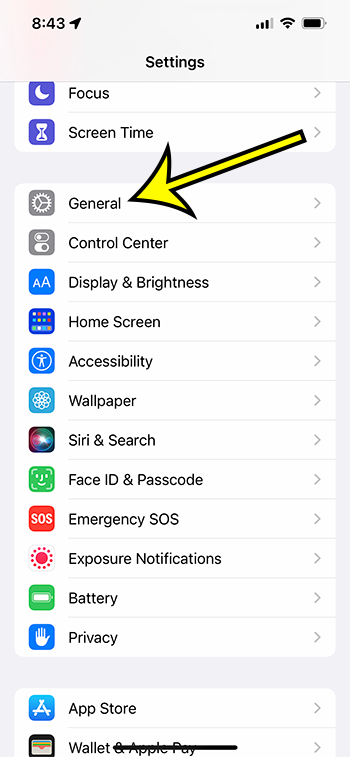
- Select General.
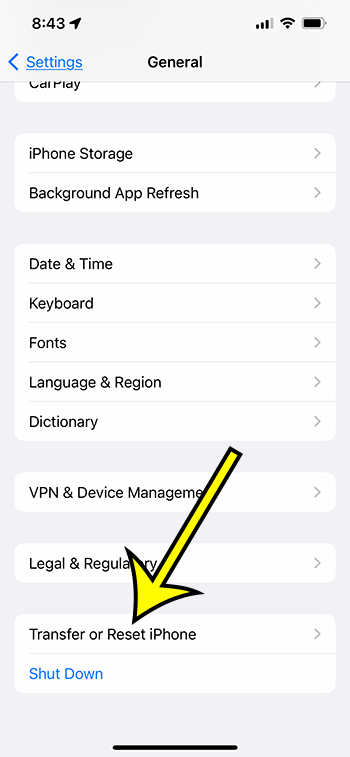
- Touch Transfer or Reset iPhone.
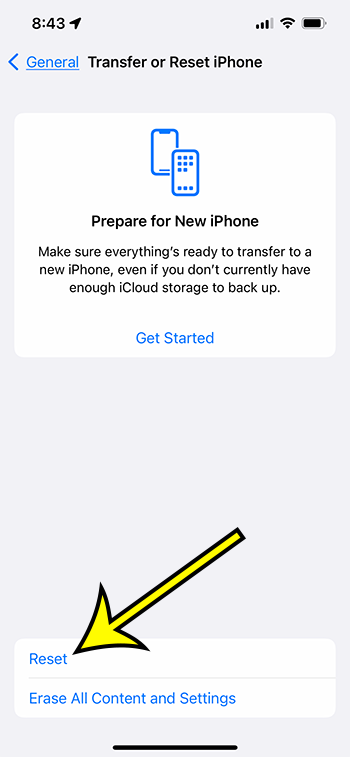
- Choose Reset.
- Tap Reset Network Settings.
Our guide continues below with additional information about how to reset network settings on an iPhone 13, including pictures of these steps.
Your iPhone 13 incorporates a variety of different network-connection options.
Not only can you connect to Wi-Fi or cellular networks to access information, you can also connect to Bluetooth devices or use VPN services.
But if you are experiencing problems with one of these features, then you may find yourself troubleshooting all kinds of settings.
if you aren’t able to fix your problem, then the final step you may want to take involves just resetting all of the settings related to your network connections.
Our tutorial below will show you how to reset network settings on an iPhone 13.
How to Use the iPhone’s Network Reset Option (Guide with Pictures)
The steps in this article were performed in the iOS 15.6 operating system on an iPhone 13. These steps will also work on other iPhone models that are using iOS 15.
Step 1: Open the Settings app on your iPhone.
Step 2: Select the General option from the menu.
Step 3: Scroll to the bottom of the menu and touch the Transfer or Reset iPhone button.
Step 4: Select the Reset option.
Step 5: Tap Reset Network Settings.
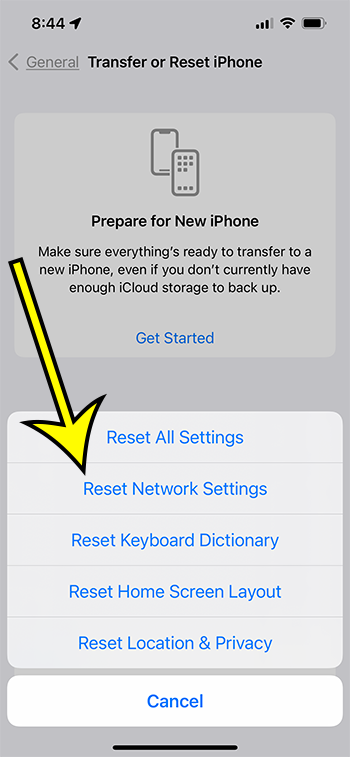
it will take a moment for the reset to complete, after which your phone will be restored to the default network settings that it has when it was a new device.
Now that you know how to reset network settings on an iPhone 13 you will be able to use this option whenever you are experiencing network-related problems that you can’t fix with other methods.
More Information About Resetting iPhone Network Settings
If you aren’t experiencing problems accessing the Internet on Wi-Fi or cellular networks, then you will probably want to avoid using this option. it doesn’t cause any harm per se, but it can be tedious to reconnect to your Wi-Fi networks and re-pair your Bluetooth devices.
if you are thinking about resetting the network settings on your iPhone because you need to change the password for a Wi-Fi network, then there is another way to do it. You can go to Settings > Wi-Fi > tap the blue i Information icon next to the network, then choose the Forget this Network option.
You will then be able to connect to the wireless network again as though it were a new network, allowing you to input the new password as you do so.
When you open the Reset menu you are going to see a handful of other options, including:
- Reset All Settings
- Reset Network Settings
- Reset Keyboard Dictionary
- Reset Home Screen layout
- Reset Location & Privacy
The other option on that screen is “Erase all Content and Settings” which is what you would do if you were trading in your phone or selling/giving it to someone else.