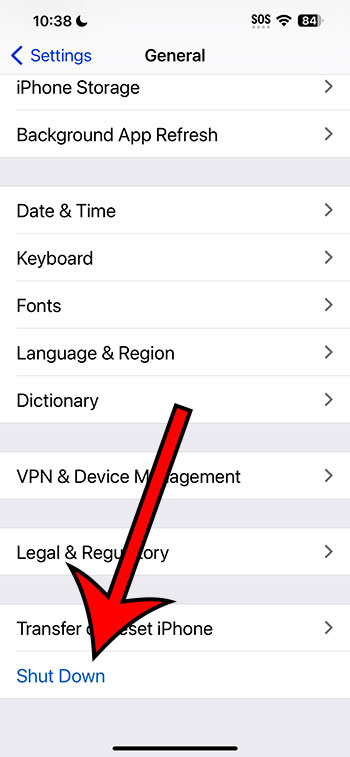
To turn off an iPhone 14, start by pressing and holding the side button along with either volume button until two sliding buttons appear. Slide to power off. If your iPhone is unresponsive, try a force restart by quickly pressing and releasing the Volume Up button, then the Volume Down button, and finally, press and hold the Side button until you see the Apple logo. After completing these steps, your iPhone 14 should be successfully turned off.
Once you’ve turned off your iPhone 14, it will cease all operations and go into a low-power state. This is beneficial if you are looking to conserve battery life, troubleshoot an issue, or if you’re just not planning to use it for a while. To turn your iPhone back on, simply press and hold the side button until you see the Apple logo.
You can also check out this video about restarting an iPhone for more on this topic.
Introduction
Owning the latest piece of tech, like the iPhone 14, comes with its share of bells and whistles. But, sometimes the basics, like turning the device off, can get overlooked. Whether you’re a tech guru or a newbie, understanding how to properly turn off your iPhone 14 is crucial. Not only does it help in conserving battery life, but it also plays a pivotal role in troubleshooting and ensuring the longevity of your device. Let’s dive into the simple steps to get this done.
Related: How to Restart iPhone
The Process in Individual Steps
- Step 1: Press and Hold the Buttons
Start by pressing and holding the side button along with either the volume up or volume down button. It’s important to press them simultaneously and keep holding until the next step appears on the screen. - Step 2: Slide to Power Off
Two sliding buttons will appear on the screen. You want to pay attention to the one that says “slide to power off.” Use your finger to swipe the button from left to right. This step ensures that you are intentionally turning off the phone, preventing any accidental shutdowns. - Step 3: Wait for the Device to Power Down
Once you’ve slid to power off, give your iPhone a moment. You’ll notice the screen will go completely black, indicating that the device is now off. Patience is key here, as rushing might lead you to think the device didn’t turn off when it just needed an extra second.
Why Turn Off Your iPhone 14?
There are several reasons why you might want to turn off your iPhone 14. It could be as simple as wanting to save battery life when you know you won’t be using it for an extended period. Or maybe your device is acting up, and you want to give it a fresh start. Turning off your phone can also be beneficial if you’re about to enter a situation where phone use is not permitted, helping you to stay distraction-free.
Related: How to Turn Off the iPhone 14 Flashlight
Pros of Turning Off Your iPhone 14
- Conserves Battery Life: Turning off your iPhone when not in use is a surefire way to save on battery life, ensuring your device is ready to go when you need it.
- Troubleshooting: If your iPhone is being glitchy or unresponsive, turning it off and on again can sometimes resolve these issues without the need for further intervention.
- Reduces Distractions: Being constantly connected can be overwhelming. Turning off your phone can provide a much-needed break and help reduce distractions.
Cons of Turning Off Your iPhone 14
- Missed Notifications: When your iPhone is off, you won’t receive any calls, messages, or notifications. This could be problematic if someone is trying to reach you in an emergency.
- Inconvenience: If you turn off your iPhone frequently, it can become a hassle to constantly power it back on and wait for it to boot up.
Video About How to Restart iPhone
Additional Information
If your iPhone 14 is unresponsive and you’re unable to turn it off using the steps above, you might need to perform a force restart. This is done by quickly pressing and releasing the Volume Up button, then the Volume Down button, and finally, pressing and holding the Side button until you see the Apple logo. Keep in mind that force restarting should be reserved for situations where the device is unresponsive, as it is a more abrupt way of rebooting the phone.
Summarized Process
- Simultaneously press and hold the side button and a volume button.
- Wait for the “slide to power off” and “emergency SOS” sliders to appear.
- Slide the “slide to power off” slider from left to right.
- Allow the device a moment to fully power down.
FAQs
- Q: Will I lose any data if I turn off my iPhone 14?
A: No, turning off your iPhone 14 does not delete any data or personal information. - Q: How do I turn my iPhone 14 back on?
A: Simply press and hold the side button until you see the Apple logo. - Q: Is it bad to turn off my iPhone 14 frequently?
A: While it’s generally safe to turn off your iPhone, doing it frequently can be inconvenient, and it’s usually not necessary. - Q: What should I do if my iPhone 14 won’t turn off?
A: If your iPhone is unresponsive, you might need to perform a force restart, as described in the additional information section. - Q: Does turning off my iPhone 14 help with troubleshooting?
A: Yes, turning off and then turning back on your iPhone can resolve minor glitches and issues.
Conclusion
Understanding how to turn off your iPhone 14 is a fundamental part of device ownership. Whether you’re saving battery life, troubleshooting, or just need a break from the digital world, these steps will ensure you know exactly what to do. Remember, it’s a straightforward process and an essential skill for any iPhone user.