If you want to turn off the inverted camera or mirror effect on your iPhone, you may do it quickly.
Simply navigate to your iPhone’s ‘Settings’ menu. Select the ‘Camera’ option, then scroll down to find the ‘Mirror Front Camera’ option. When you find it, turn it on. The inverted camera effect has been effectively turned off.
Following these steps will ensure that your selfies and front-camera photos appear in the same orientation as they do in the viewfinder.
Continue reading this post to learn how to disable the iPhone’s inverted camera.
For more information, watch this video on how to turn off the inverted camera on the iPhone 13.
How to Stop Your iPhone from Mirroring Selfies
The instructions in this post were completed on an iPhone 13 running iOS 17.
Step 1: Open the Settings app on your iPhone.
Step 2: Select Camera from the list of menu sub-categories.
Step 3: Turn on or off the Mirror Front Camera option by tapping the button to the right of it.
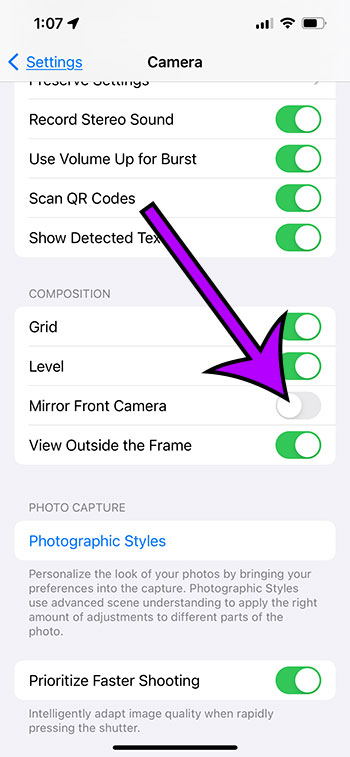
Now that you know how to turn off inverted camera on iPhone 13, you’ll be able to find and toggle this setting whenever you need to change it for a picture you’re taking.
Inverted Camera Mode on the iPhone: A Video Tutorial
More Information about iPhone Mirrored Selfies
You will be unable to mirror the camera if you have an older iPhone that has not been upgraded to iOS 14.
You may manually flip a photograph on an older iPhone by opening it in the Photos app and utilizing the editing tools available there.
On an iPhone, use the Photos app to flip a photo. The steps are as follows:
- On your iPhone, launch the Photos app.
- Go to the image you want to flip and open it.
- In the upper right corner of the screen, click the Edit button.
- At the bottom of the screen, tap the Crop and Rotate button.
- Flip the image with your finger by tapping the Flip button in the top-left corner of the screen.
- Click the Done button to save the inverted image.
The procedures described above are for flipping a photograph in the Photos app, although other apps or photo editing tools available on the App Store may also allow you to do so.
How to Disable the iPhone’s Flipped Camera Mode for Better Selfies
- Navigate to the Settings menu.
- Select Camera.
- To turn off the Mirror Front Camera, press the Mirror Front Camera button.
Related: How to Reset Network Settings on an iPhone 13
Conclusion
You might be wondering why the photos you take with your iPhone’s front-facing camera don’t appear exactly like the ones you took.
Looking through your camera app’s viewfinder when utilizing the selfie camera is similar to looking in a mirror. Because this is how we perceive ourselves in mirrors, it does not register as being reversed.
Photographs saved to your Photos app, on the other hand, will not be mirrored in this way, which may result in an image you despise.
Photos taken with your iPhone’s front-facing camera will differ from those in the pictures app.
This is due to the fact that the image you see when you take the shot is supposed to be the same as the image you see when you look in the mirror.
Once the shot is taken, the iPhone will modify it to present the image as it might appear to others.
When you look at yourself in the app’s viewfinder while wearing a shirt with typography, the wording appears reversed.
The final image, however, will flip that text so that it reads correctly.
You can modify a setting on the iPhone so that the finished image looks exactly like the one you saw when you snapped the photo.