Want to declutter your iPhone 14? You can easily delete apps either through a quick method on the home screen or a detailed route via settings. Always back up before deleting and be aware of the pros and cons of app removal.
Our tutorial below discusses more about deleting iPhone apps, including the pros and cons of this action, as well as some frequently asked questions and answers.
You can also check out this video about permanently deleting apps on an iPhone for more on this topic.
Hello there, tech enthusiast! Owning an iPhone 14? Pretty cool, huh? But let’s face it, sometimes we download apps and later wonder, “Why did I even get this?” No worries. Just like spring cleaning for your closet, you can declutter your iPhone 14, and I’m here to guide you step-by-step. So, let’s jump in!
Understanding the Basics
First things first, why delete apps? Maybe you’re running out of storage, or perhaps you’ve outgrown some of your old favorite games. Whatever the reason, cleaning up your phone can lead to improved performance and peace of mind.
Related: What Does Offload App Mean on an iPhone 14?
Before You Delete: Back Up!
Hold your horses! Before you go on an app-deleting spree, always back up your phone. It’s like the safety net when you’re trying a daring circus trick. So, if things go south, you’ve got a backup plan (pun intended).
Easy-Peasy: Quick Delete Method
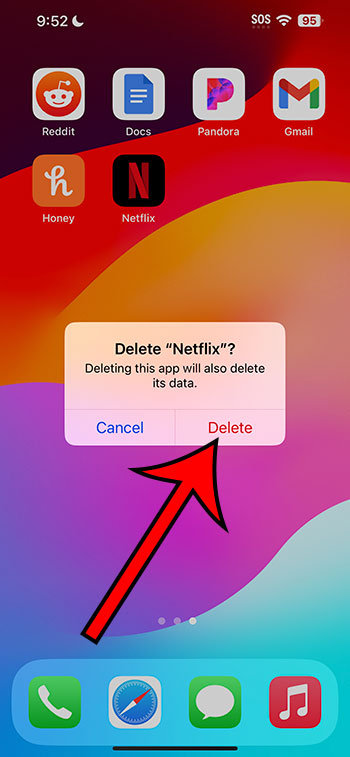
- Press and Hold: Find the pesky app. Now, tap and hold its icon.
- Choose ‘Remove App’: Select this to start the process.
- Select the ‘Delete App’ option: Choose the deletion option from the pop-up menu. Then you’re ready for your next move.
- Tap and Confirm: See the Delete button? Tap it and then confirm the delete. Sayonara, unwanted app!
Through Settings: The Detailed Route
Sometimes you need a little more detail, right?
- Dive into Settings: Open up the ‘Settings’ app.
- Tap ‘General’: This is your phone’s nerve center.
- Select ‘iPhone Storage’: Here, you’ll see a list of all your apps and their sizes.
- Choose the App: Found the culprit? Tap on it.
- Hit ‘Delete App’: And just like that, it’s gone.
Pros of Deleting Apps
- More Space: Free up some room for those cool new apps or more photos of your cat.
- Better Performance: Too many apps can slow down your phone.
- Clean Interface: Say goodbye to clutter and hello to organization.
Cons of Deleting Apps
- Lost Data: Some apps might not store your data online.
- Redownload Hassle: You might need to get it back from the App Store later.
- Adapting: If it was a daily-use app, you’ll need to find a replacement.
Video About Deleting Apps
Additional Information
- Reinstallation: If you have second thoughts, head to the App Store. You can redownload your previously purchased or free apps.
- Offload: Not ready to commit? You can offload an app. This keeps the app’s data, but removes the app itself.
- Subscription Apps: If it’s a paid subscription, deleting the app doesn’t end the subscription. Don’t forget to cancel it if you don’t want to be billed.
Wrapping Up
There you have it! Whether you’re going for the quick fix or the detailed route, you’re now equipped to declutter your iPhone 14 like a pro. Remember, your phone is like your personal space. Keep it clean, organized, and filled only with what brings you joy.
FAQs
- Can I recover a deleted app’s data?
- Only if the app had a cloud backup or if you had a recent iPhone backup.
- Does deleting apps save battery life?
- Not necessarily, but it can improve performance.
- How often should I declutter my apps?
- It’s personal preference, but a monthly check can be beneficial.
- What if I accidentally delete an essential app?
- No worries! Redownload from the App Store. If it’s a built-in app, it can be restored.
- Are there any apps that can’t be deleted?
- Yes, some built-in apps (like ‘Settings’) can’t be removed.