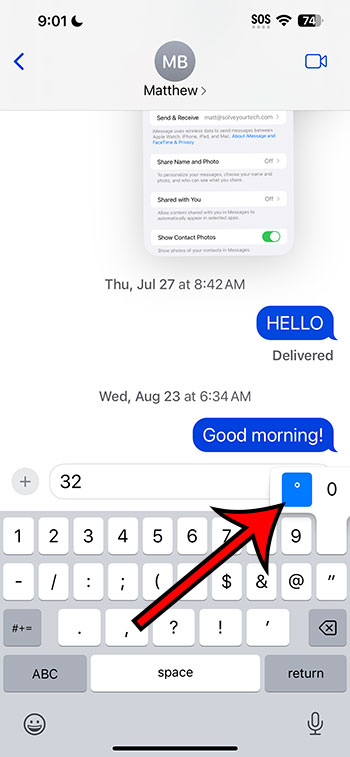
Inserting a degree symbol on an iPhone 14 is a simple process that can be completed in just a few steps. First, open the app where you want to insert the symbol and bring up the keyboard. Next, find and hold down the “0” key. A small pop-up will appear with the degree symbol. Slide your finger to select it, and the degree symbol will be inserted into your text.
What Happens Next?
Once you’ve successfully inserted the degree symbol, you can continue typing as usual. The symbol will remain in the text, and you can move your cursor around it, delete it, or add more text as needed. The process is intuitive and seamless, ensuring that you can include the degree symbol in your text whenever necessary.
You can also watch this video about how to insert a degree symbol on an iPhone for more information.
Introduction
The degree symbol is a small circle that appears above the line of text, and it’s used to denote temperatures, angles, or coordinates. On the iPhone 14, inserting this symbol might not be immediately obvious since it’s not displayed on the main keyboard screen. However, Apple has included a way to access and use the degree symbol, and once you know how, it’s a straightforward process. In this article, we will walk through the steps to insert a degree symbol on your iPhone 14, explain why you might want to do this, and provide some additional helpful information.
Related: How to Turn Off an iPhone 14
The Process
- Step 1: Open the App
- Start by opening the app where you want to insert the degree symbol. This could be Messages, Notes, Mail, or any other app that allows you to type.
- Step 2: Bring Up the Keyboard
- Tap on the text field to bring up the keyboard. Make sure you are in the section of the text where you want the degree symbol to appear.
- Step 3: Find the “0” Key
- Look for the “0” key on the keyboard. It is located on the same key as the numeral nine.
- Step 4: Hold Down the “0” Key
- Press and hold down the “0” key. After a moment, a small pop-up will appear above the key.
- Step 5: Select the Degree Symbol
- Without lifting your finger, slide it up to select the degree symbol, which is a small circle. Once you’ve highlighted the degree symbol, lift your finger, and the symbol will be inserted into your text.
Why Insert a Degree Symbol?
You might be wondering why you’d need to insert a degree symbol on your iPhone 14. There are several situations where this could be useful. Perhaps you’re texting a friend about the weather and want to be precise about the temperature. Or maybe you’re working on a math problem and need to specify an angle. In any case, the degree symbol adds clarity and precision to your writing, ensuring that your message is understood exactly as you intended.
Pros
- Precision: Using the degree symbol allows for precise communication, especially when discussing temperatures or angles.
- Professionalism: Including the correct symbols in your writing can make your text appear more professional and well-thought-out.
- Ease of Use: Once you know how to do it, inserting a degree symbol on your iPhone 14 is quick and easy.
Cons
- Not Immediately Obvious: The degree symbol is not visible on the main keyboard screen, so it might not be immediately obvious how to insert it.
- Requires an Extra Step: Inserting the degree symbol requires an extra step compared to typing regular characters.
Video About Typing an iPhone Degree Symbol
Additional Information
It’s worth noting that the process for inserting a degree symbol may vary slightly depending on the app you’re using or your specific settings. However, the general process outlined in this article should work in most cases. Additionally, if you find yourself needing to use the degree symbol frequently, you might find it helpful to create a keyboard shortcut for it.
Summary
- Open the app where you need the degree symbol.
- Tap the text field to show the keyboard.
- Locate the “0” key.
- Press and hold down the “0” key.
- Slide your finger up to select the degree symbol and insert it into your text.
FAQs
- Can I insert a degree symbol in any app?
- Yes, you can insert a degree symbol in any app on your iPhone 14 that allows for text input.
- Is there a keyboard shortcut for the degree symbol?
- By default, there is no keyboard shortcut for the degree symbol, but you can create one in your keyboard settings.
- Will this process work on other iPhone models?
- Yes, this process for inserting a degree symbol should work on most iPhone models, not just the iPhone 14.
- Can I use the degree symbol for anything other than temperatures and angles?
- While temperatures and angles are the most common uses, you can use the degree symbol in any context where it is appropriate.
- What should I do if the degree symbol doesn’t appear?
- Make sure you are holding down the “0” key and sliding your finger up to select the degree symbol. If it still doesn’t work, try restarting your phone or checking for software updates.
Conclusion
Inserting a degree symbol on your iPhone 14 is a handy skill that can enhance your text communication, adding precision and professionalism to your messages. Whether you’re discussing the weather, solving math problems, or dealing with coordinates, knowing how to insert this small but significant symbol can make a big difference. Follow the simple steps outlined in this article, and you’ll have it mastered in no time.