Changing your iPhone’s name adds a personal touch and helps in easy identification, especially when connecting to networks or Bluetooth devices. Navigate to Settings > General > About, tap on the current name, enter the new name, and hit ‘Done’. Enjoy your newly personalized iPhone!
This guide continues below with more information, as well as pros and cons, about changing your name on an iPhone.
You can also check out this video about changing an iPhone name for more on this topic.
Why Change Your iPhone’s Name?
Have you ever connected your iPhone to a Wi-Fi network or tried to pair it with a Bluetooth device, only to realize that its name doesn’t quite reflect your personality or is just plain boring? Or maybe you’ve inherited your iPhone from someone else, and it’s still carrying their digital footprint in its name. Whatever your reason might be, changing your iPhone’s name is a quick and simple process that can add a personal touch to your device. In this article, we’ll guide you through the steps on how to change your iPhone’s name in the settings, discuss the pros and cons of doing so, and answer some frequently asked questions.
Related: How to Change an iPhone’s Name
Finding the Right Settings
First things first, grab your iPhone and unlock it. Head to the ‘Settings’ app – it’s the one with the gear icon. Once you’re in, scroll down a bit and tap on ‘General’. Now, you’re on the right track!
Navigating to About
In the ‘General’ settings, you will see a lot of options. But don’t let that intimidate you. Just look for the ‘About’ section and give it a tap. This is where all the essential information about your iPhone is stored.
Changing the iPhone Name
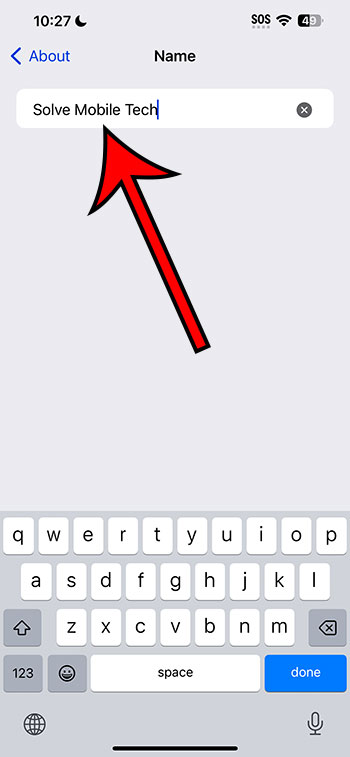
Inside the ‘About’ section, the very first line should show the current name of your iPhone. It’s time to give it a tap! Once you do, you’ll be able to type in whatever name you’d like your iPhone to have. Feel free to get creative, but keep it appropriate and something you won’t regret later. After you’ve typed in your desired name, hit ‘Done’ on the keyboard.
Checking the Changes
Now that you’ve changed your iPhone’s name, it’s a good idea to ensure that the changes have taken effect. You can do this by reconnecting to a Wi-Fi network or pairing with a Bluetooth device. Your iPhone should now display its new name.
Pros of Changing Your iPhone’s Name
- Personalization: Giving your iPhone a unique name adds a personal touch to your device. It reflects your personality and makes your device stand out.
- Easy Identification: If you have multiple Apple devices, changing the names helps in easy identification, especially when connecting to Wi-Fi networks or pairing with Bluetooth devices.
- Security: In public places, a unique iPhone name can provide an extra layer of security, making it harder for others to identify which device is yours.
Cons of Changing Your iPhone’s Name
- Confusion: If you change your iPhone’s name too often, it might lead to confusion, especially when trying to connect to known networks or devices.
- Syncing Issues: Sometimes, changing the device’s name can cause syncing issues with other Apple services. It’s rare, but it happens.
- Loss of Default Recognition: The default device name is usually easy to recognize. Changing it to something less conventional might make it harder for tech support to assist you, should the need arise.
Video About Changing Your iPhone Name
Additional Information
When you change your iPhone’s name, the change is reflected across various Apple services and devices that you are connected to with the same Apple ID. This includes FaceTime, iMessage, and Find My iPhone. Therefore, it is important to remember the new name in case you need to use these services.
Final Thoughts
Changing your iPhone’s name is more than just a cosmetic change; it’s a way of personalizing your device and making it truly yours. With this simple yet effective guide, you now know how to navigate through your iPhone’s settings and change its name to something that suits your style. Just remember the pros and cons, and enjoy your newly personalized device!
FAQs
- Will changing my iPhone’s name affect my data or apps? No, changing your iPhone’s name does not affect your data, apps, or any other settings on your device. It’s purely a cosmetic change.
- Do I need to restart my iPhone after changing its name? No, there is no need to restart your iPhone after changing its name. The changes take effect immediately.
- Can I change my iPhone’s name as many times as I want? Yes, you can change your iPhone’s name as many times as you like. However, keep in mind that it might cause confusion, especially when connecting to other devices or networks.
- Does changing my iPhone’s name affect my Apple ID? No, changing your iPhone’s name does not affect your Apple ID or any other information associated with your Apple account.
- Is it possible to change my iPhone’s name from my computer? No, the iPhone’s name can only be changed directly from the device itself.