The iPhone 14 allows users to display the battery percentage through the settings. This gives a clearer picture of battery life, aiding in better planning. However, some might find it adds clutter to the status bar. Whether you display it or not, the choice is yours!
Our guide continues below with additional information about the battery percentage option on your iPhone, including pros and cons of the setting, as well as some frequently asked questions.
You can also check out this video about how to show battery percentage on iPhone for more on this topic.
The Importance of Monitoring Battery Percentage
You know that feeling, right? When you’re about to snap the perfect photo, or you’re in the middle of an important call, and suddenly… your phone dies. Not fun. That’s why knowing your battery percentage is so crucial. It gives you a heads up, so you’re not caught off-guard.
What’s New with the iPhone 14 Battery Display?
With every new iPhone release, Apple likes to spice things up a bit. The iPhone 14 is no exception. It comes with a refreshed look, and that includes a slightly altered way to view your battery life. Neat, huh?
Related: How to Turn On or Turn Off AirDrop on iPhone 14
A Streamlined Status Bar
The status bar at the top of your iPhone screen has always been the go-to spot to check your battery life. With the iPhone 14, the design feels more refined and less cluttered.
Adaptive Display Options
The iPhone 14 offers adaptive display options based on your usage patterns. If you’re the type who always wants to know the exact percentage, you can have it. Or, you can choose a more minimalistic look. It’s all up to you!
How to Display Battery Percentage on iPhone 14
Apple knows we all have our preferences. Some folks want the exact number, while others are content with just the battery icon. So, how do you get your iPhone 14 to show the battery percentage?
- Unlock your iPhone: Yep, it starts this simple.
- Head to Settings: This is where all the magic happens.
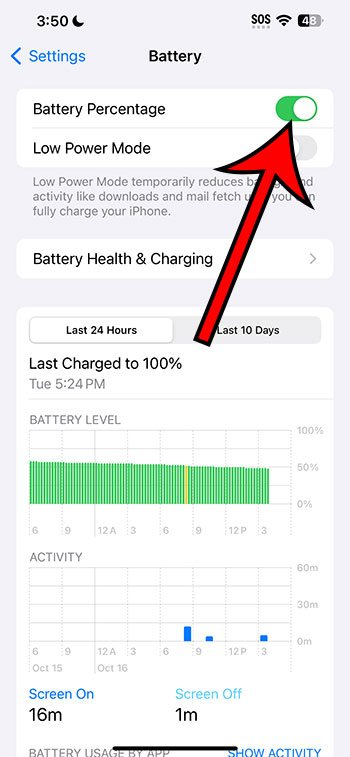
- Go to ‘Battery’: Here, you’ll find all the battery-related settings.
- Toggle ‘Battery Percentage’ on: And voila! The exact battery percentage should now be displayed next to the battery icon.
Why Doesn’t iPhone 14 Show Battery Percentage by Default?
You might wonder, “Why isn’t the battery percentage showing by default?” Apple likely wanted to give the status bar a cleaner look, but hey, the power to customize is in your hands!
Pros of Displaying Battery Percentage
A Clear Picture: You know exactly how much juice you’ve got left.
Better Planning: You can plan your charges more effectively.
Cons of Displaying Battery Percentage
Might Lead to Anxiety: Watching the percentage drop can be stressful for some.
Clutters the Status Bar: If you’re going for a minimalist look, the percentage might feel out of place.
Video About The iPhone Battery Percentage Setting
Tips to Extend Your iPhone 14’s Battery Life
While it’s great to know your battery percentage, it’s even better to ensure it lasts longer. Some quick tips?
- Lower your screen brightness: This one’s a no-brainer.
- Close unused apps: They might be hogging your battery in the background.
- Update your iOS regularly: Apple often includes battery optimization in their updates.
In a Nutshell: To Display or Not to Display?
It all boils down to your preference. Want to always be in the know? Display the percentage. Prefer a sleeker look? Stick with the default.
Final Thoughts
The iPhone 14 offers a delightful experience, and the flexibility to display the battery percentage is just the cherry on top. Whichever you choose, the power is, quite literally, in your hands.
FAQs
1. Can I display the battery percentage on other iPhone models? Yes, most iPhone models allow you to display the battery percentage through the settings.
2. Does displaying the battery percentage use more battery? No, displaying the percentage won’t drain your battery.
3. How often should I charge my iPhone 14? For optimal battery health, charge your phone when it’s between 20-80%.
4. Can I customize the battery icon? Currently, Apple doesn’t offer customization for the battery icon.
5. Are there any apps that can show me more detailed battery stats? Yes, the App Store has several apps offering detailed battery analytics.