There are a few simple reasons why a message that you sent as an iMessage could be sent as a regular text:
- The receiving device is not an Apple device.
- The recipient’s phone is not turned on.
- The receiving device is not connected to the Internet.
- The receiving iPhone has the iMessage setting turned off.
Keep on reading below to learn more about why this happens and whether it’s something that you need to be concerned about.
Introduction
Ah, the modern marvel that is the iPhone! With its sleek design and cutting-edge features, it’s no surprise that people are always eager to delve into the finer points of its functionality. Today, we’re diving deep into a topic that might have puzzled some users: when an iMessage is sent as a text message. So, fasten your digital seat belts, because we’re about to embark on an enlightening journey.
Understanding iMessage vs. Text Message
Firstly, it’s imperative to distinguish between iMessage and traditional text messages. iMessage is Apple’s very own messaging service that allows users to send messages over the internet. These messages can be rich in content, including images, videos, and other multimedia. They appear in a blue bubble and are exclusive to Apple devices.
On the other hand, traditional text messages, or SMS (Short Message Service), are a standardized messaging system that has been around since the dawn of mobile phones. These messages are typically constrained by character limits and lack the rich multimedia options that iMessage offers. They appear in a green bubble.
Why Would an iMessage Convert to Text?
It can be quite startling when, expecting a delightful blue bubble, you’re instead greeted with a green one. Several reasons can cause this unexpected shift:
- Internet Connectivity Issues: iMessage requires an internet connection, either via Wi-Fi or cellular data. If either the sender or receiver is out of an internet-covered zone or experiencing connectivity issues, the iPhone will default to sending the message as an SMS.
- Recipient’s Device: Not everyone uses an iPhone (surprise!). If the person you’re texting does not use an Apple device, the message will automatically be sent as an SMS.
- iMessage Server Downtime: Though rare, Apple’s servers can face downtimes. When this happens, iMessages won’t be delivered, prompting your phone to use the SMS system.
- Manual Settings: The iPhone provides an option in its settings where users can decide if they want their iMessages to be sent as SMS when iMessage is unavailable. If this is toggled on, you might find your iMessages being sent as text messages under certain conditions.
The Implications of iMessage Turning Green
Now, before you think the green bubble is an inconsequential change, let’s shed light on what this transformation implies.
- Cost Considerations: Depending on your mobile plan, sending SMSs might incur charges, especially if you’re sending them internationally. iMessages, being internet-based, will only consume your data or Wi-Fi bandwidth. Always be cautious of this when texting abroad or if you’re on a limited texting plan.
- Speed & Delivery: iMessages, when all is well with the internet, are generally delivered faster than SMS. However, if you ever see the message “Sent as Text Message”, it’s an indication that the delivery might have taken a tad longer than usual.
- Features & Capabilities: Text messages don’t have the richness of iMessages. Features like message reactions, screen effects, and end-to-end encryption are exclusive to iMessage. When converted to text, these features become unavailable.
How to Check Your Relevant Message Settings
The steps in this section were performed on an iPhone 14 in the iOS 17 operating system.
However, these steps will also work on many other iPhone models, and most other recent versions of iOS.
Step 1: Open the Settings app on your iPhone.
Step 2: Scroll down and choose the Messages option.
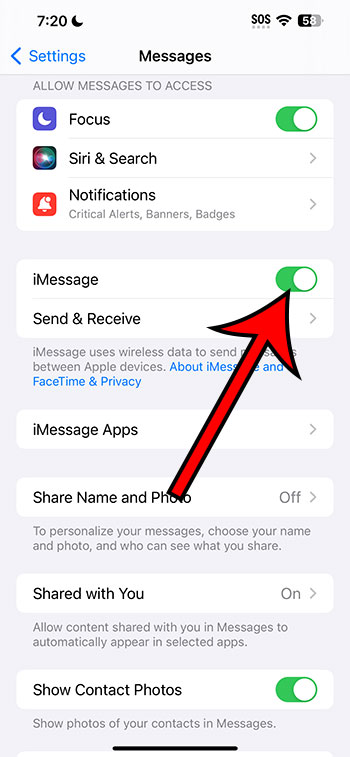
Step 3: Make sure that the iMessage setting is enabled.
Step 4: Toggle off the Send as SMS option.
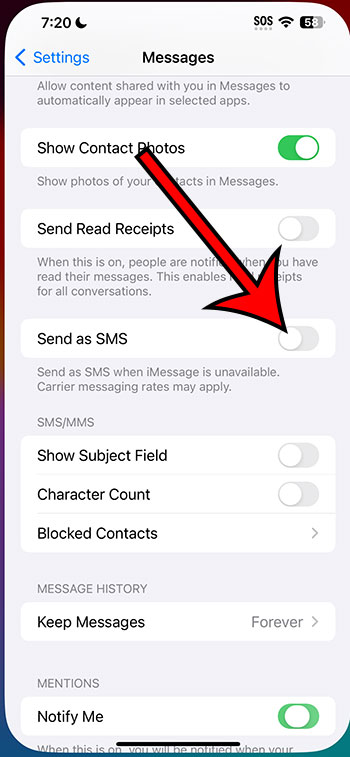
Now you can confirm that the iMessage setting is enabled, and you can make sure that your phone won’t try and send a regular SMS message with a green bubble if you had initially sent it as an iMessage with a blue bubble.
Ensuring iMessage Stability
If you’re a fan of the blue bubble (and the features it brings), here are some quick checks to ensure its consistency:
- Check Internet Connectivity: Ensure you’re connected to a stable Wi-Fi network or have strong cellular data coverage.
- Toggle iMessage: Sometimes, simply toggling iMessage off and then on again in the iPhone’s settings can resolve transient issues.
- Update iOS: Ensuring that your iPhone runs the latest version of iOS can sometimes remedy any iMessage hiccups.
Conclusion
In the vast world of iPhone intricacies, the transition of an iMessage to a text message is but a small mystery. Yet, understanding it not only gives you control over your communication but also ensures you make the most of your device.
Remember, whether blue or green, the most important thing is the message’s content and the connection it represents. Still, it’s always empowering to navigate the digital universe with confidence and authority. Happy texting!