The iPhone 13’s camera is excellent for still images, but it can also record video.
However, shooting films in 720p or 1080p may not fully utilize the camera’s capabilities.
By adjusting a setting in the Settings menu, you can capture 4K video on your iPhone 13.
On an iPhone 13, you can record 4K video by heading to Settings > Camera > Record Video > then selecting one of the 4K options.
You can also watch this video about recording 4K video on iPhone 13 for more information.
Summary – Producing 4K iPhone Videos
- Select Settings.
- Choose Camera.
- Select Record Video.
- Select one of three 4K resolution options.
Our explanation continues below with further information, including screenshots, on how to record 4K video on iPhone 13.
More information on this topic can be found in our iPhone video recording guide.
When 4K televisions and monitors become more affordable and widely available, you may elect to capture iPhone videos in 4K resolution as well.
If you have an iPhone 13, you’re in luck because it has video recording capabilities.
Our article below will show you how to locate the device setting that controls the resolution of videos captured using the iPhone’s default camera app, allowing you to choose from among the many 4K alternatives.
Video for iPhone 4K Recording
How to Increase iPhone 13 Video Recording Resolution to 4K
Although the procedures in this post were tested on an iPhone 13, they are equally applicable to other iPhone 13 models, such as:
- iPhone 13 Mini
- iPhone 13 Pro
- iPhone 13 Pro Max
Step 1: Locate and press the Settings app on your Home screen to open it.
Step 2: Scroll down and select Camera from the drop-down box.
Step 3: At the top of the screen, click the Record Video icon.
Step 4: Select the 4K recording option for your videos.
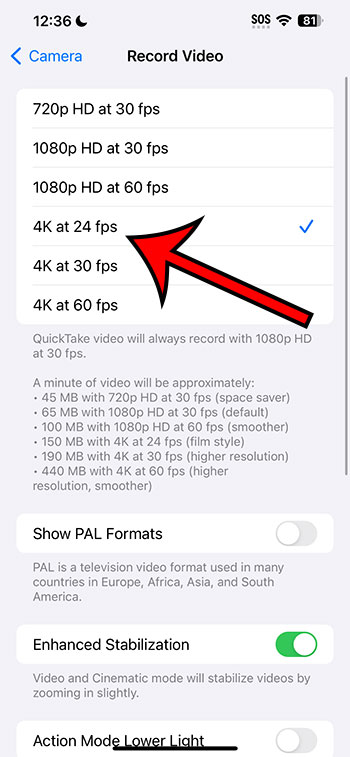
You may also alter the video recording resolution by opening the Camera app, selecting Video mode, and then hitting the resolution option at the top to select 4K. Then, next to it, select the FPS (frames per second) option to choose between 24, 30, and 60 fps.
You will be able to alter this setting based on the resolution and file size that you desire for the videos that you record now that you know how to shoot 4K video on an iPhone 13.
When it comes to file size, 4K videos can be much larger, and this varies depending on the FPS setting you select. Apple specifies the following file sizes as examples for one-minute 4K films:
135 MB 4K resolution at 24 frames per second
170 MB 4K resolution at 30 frames per second
400 MB 4K resolution at 60 frames per second
The following are the descriptions offered for each of these sorts of video recordings:
4K resolution @ 24 frames per second – film appearance
Higher resolution – 4K resolution @ 30 frames per second
Higher quality and smoother action with 4K at 60 frames per second.