You can disable the lock sound on the iPhone 14 by navigating to Settings > Sounds & Haptics > and then clicking the button to the right of Lock Sound.
Our explanation of how to stop the iPhone lock sound continues below with more detail, including screenshots.
Watch this video to learn how to turn off the lock sound on an iPhone 14.
How to Disable iPhone Lock Sound 14
The procedures in this post were carried out using an iPhone 14 Plus running iOS 17.
You may use the same methods to disable the lock sound in different iOS versions and iPhone models, such as the ones listed below:
- iPhone 14
- iPhone 14 Pro
- iPhone 14 Pro Max
Step 1: Locate and tap on the gray gear symbol to open the Settings menu.
Step 2: From this menu, select Sounds & Haptics.
Step 3: Scroll down and hit the button to the right of the Lock Sound to disable it.
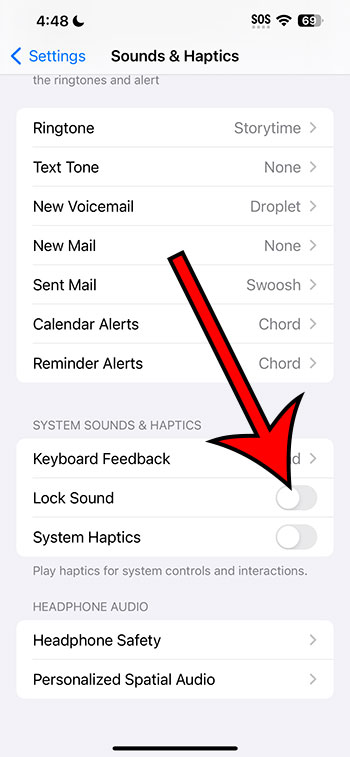
The button is inactive when there is no green shading surrounding it. In the image below, I’ve turned off the lock sound.
Now that you know how to turn off the lock sound on the iPhone 14, you can return to this menu and alter this setting whenever you wish.
Related: How to Change Your Ringtone on an iPhone 14
The iPhone 14 Video About Lock Sound
Summary – How to Remove the Lock Sound on an iPhone 14
- Navigate to Settings.
- Choose Sounds & Haptics.
- Disable the Lock Sound.
Additional Information
When you lock or unlock your iPhone, you will hear the lock sound that you turned off earlier.
There is no way to eliminate one of those noises. This setting just disables it.
By pushing the switch on the left side of your iPhone, you may disable the lock sound as well as the majority of the other sounds on your phone.
Unfortunately, the sound of the iPhone lock cannot be modified. It’s got to be the one you’re hearing right now.
Conclusion
The lock sound on your iPhone 14 is one of several that can be disabled.
If you don’t want to keep your iPhone silent and instead want to tweak the many sounds it makes, go to the Sounds & Haptics menu to see what else you can change.
Directly above the lock sound setting, for example, is one labeled “Keyboard Feedback.”
By opening that option, you can change the noises and haptic feedback you hear while composing text messages or emails.