Your iPhone uses your location and GPS position to deliver the most relevant information.
Some of this data is used by applications to notify you of local eateries or provide driving directions, as well as to guarantee that your time is shown correctly based on your time zone.
However, you do not need to keep your location enabled, and you can use the device even when it is switched off.
On an iPhone, you can disable location services by heading to Settings > Privacy & Security > Location Services and unchecking the Location Services option.
You can also check out this video about how to turn off location on iPhone 13 for more on this topic.
Summary – How to Disable or Enable Location Services on an iPhone
- Navigate to Settings.
- Select Privacy & Security.
- Select Location Services.
- Turn off Location Services.
- Select Turn Off to confirm.
Our explanation continues below with additional information, including screenshots, on how to turn off location on iPhone.
The location data collected by your iPhone as you travel the world can assist to improve the experience of the several apps you use on the device.
Several aspects of your smartphone improve when you provide correct location data to such apps.
However, if you are concerned about others seeing your location or if you do not want your apps to know where you travel, you can disable part of that location access.
Our tutorial will show you how to alter these iPhone location settings so that you can control who sees your location and when they view it.
If you want to learn more about changing your AirPod notifications, read this article.
How to Turn Off iPhone Location Services Video
Disabling Location Services on an iPhone 13
The methods in this post were completed on an iPhone 13 running iOS 16, but they should be applicable to the majority of other iPhone models and iOS versions as well.
Step 1: Launch the Settings app on your iPhone.
Step 2: Scroll down and select Privacy & Security.
Step 3: Tap the Location Services menu item at the top of the screen.
Step 4: Tap the Location Services button to the right.
Step 5: Tap Turn Off to confirm that you wish to turn off your iPhone’s location and GPS services.
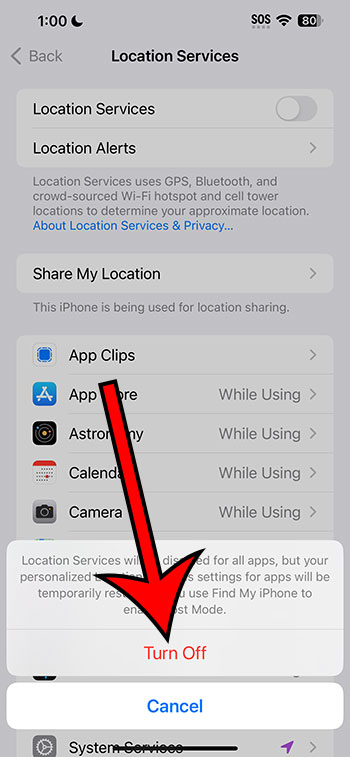
According to the information on the pop-up, if you use the Find My iPhone app to try to locate your device, your iPhone will be able to restore Location Services temporarily.
Now that you know how to switch off location on iPhone, you may utilize this option whenever you don’t want your device or apps to use your location information for anything.
If you have previously shared your location with others, the next section will show you how to disable the location sharing capability.
How to Disable iPhone Location Sharing
You may have seen a “Share My Location” option if you looked around the Location Services menu.
This menu item refers to the specific sharing rights that you have granted to other contacts so that they can observe your GPS location.
Follow the steps below to disable this feature so that others cannot see where you are.
Step 1: Open the Settings program.
Step 2: Select the Privacy & Security tab.
Step 3: Opt for Location Services.
Step 4: Select the Share My Location option.
Step 5: Disable Share My Location.
If you’ve granted others access, a list of persons with whom you’ve previously shared your location will appear beneath this button.
The next section demonstrates how to revoke location access for a single app.
How to Turn Off Location Services for a Specific App on an iPhone
A plethora of iPhone apps want to know where you are.
Several of these apps will not function properly unless this permission is granted. Without location access, Google Maps, for example, will not function properly.
Other apps, on the other hand, may ask for but are not required to use your location data. Location access to social networking apps like Instagram and Facebook, for example, may be something you wish to limit. You can do this by following the steps mentioned below.
- Navigate to the Settings menu.
- Opt for Privacy and Security.
- Select Location Services.
- Select an app.
- Select Never to withdraw permissions.
This menu also has a “Precise Location” option. If you simply wish to supply the app with broad details about your data rather than the more particular location information that it might generate, you can disable this.
Now that you know how to turn off location on iPhone and all of the many methods for eliminating location access, you will be able to better govern the apps and services that view that data.