On your iPhone 14, you can enable or disable AirDrop by heading to Settings > General > AirDrop > and then selecting an option.
Our post on altering the iPhone 14 AirDrop option continues below with additional information, including screenshots.
You can also watch this video for more about how to enable or disable AirDrop on an iPhone 14.
How to Enable or Disable AirDrop on an iPhone 14
The steps in this post were carried out using an iPhone 14 Plus running iOS 17.
These procedures apply to the majority of other iOS versions and iPhone models, including the ones listed below:
- The iPhone 14
- the iPhone 14 Pro
- the iPhone 14 Pro Max
Step 1: Launch the Settings application.
Step 2: Navigate to the General tab.
Step 3: From the list of options on this menu, select AirDrop.
Step 4: Select the required AirDrop configuration.
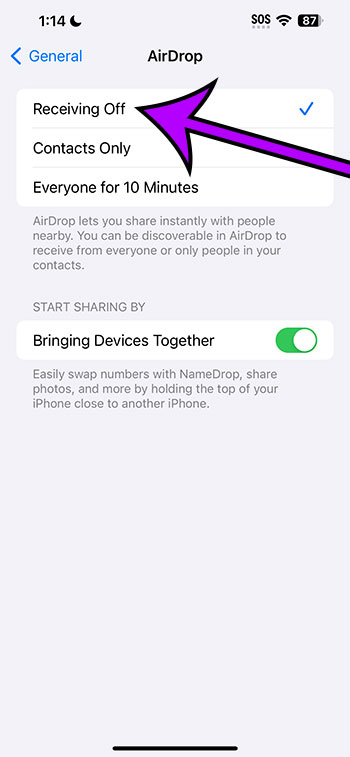
You will be able to adjust this setting whenever you want to receive files in this manner or prohibit people from sending them to you now that you know how to enable or disable AirDrop on iPhone 14.
Adjusting AirDrop on an iPhone 14 Video
AirDrop on the iPhone 14 Summary
- Navigate to Settings.
- Choose General.
- Select AirDrop.
- Select the desired option.
Related: How to Turn Off the iPhone 14 Pop Up Blocker
Additional Information
You may change the AirDrop setting in the Control Center as well as the Settings app.
Swipe down from the top-right corner of the screen to access the Control Center, then tap and hold on the upper-left square with the Wi-Fi and Airplane Mode icons to activate them.
Then, choose the AirDrop button that appears, followed by the desired AirDrop settings.
The AirDrop settings are as follows:
Receiving Off – This turns off the ability for others to transmit you files using AirDrop.
Contacts Only – Only contacts from your contact list will be able to send you files via AirDrop.
Everyone for 10 Minutes – When you choose this option, everyone within 10 minutes of you will be able to send you files.
If you are unable to receive AirDrop files, ensure that both Bluetooth and Wi-Fi are turned on. Also, ensure that your Personal Hotspot is not activated.
Conclusion
AirDrop is a fantastic iPhone function that allows you to share files with others.
This is especially true if you’re attempting to give someone a large number of photographs or a video clip.
Knowing how to adjust the AirDrop settings, on the other hand, can be handy if you are having issues or strangers are attempting to give you files.
Our previous article on how to enable or disable AirDrop on iPhone 14 outlined two methods.