You can create an account for Pokemon Go in a variety of ways. You can use your Pokemon Trainer Club account, Google, Facebook, or, if you have one, your Apple ID.
If you share a smartphone with someone else, you may need to know how to sign out of Pokemon Go so they can log in with their trainer club account or another acceptable account type.
When something goes wrong in Pokemon Go, you must take action to try to solve the problem.
Perhaps you share a device with a child or family member and would like to be able to sign out of your account and sign in to theirs.
For a variety of reasons, you may need to know how to sign out of a Pokemon Go account.
We’ll show you how to exit Pokemon Go in the steps below.
See this video for more information on how to sign out of Pokemon Go.
How to Exit Pokemon Go
- Open Pokemon Go.
- Tap the Pokeball.
- Go to Settings.
- Scroll to the bottom of the page and click Sign Out.
More information on how to sign out of the Pokemon Go app is provided below, along with screenshots of these processes.
How to Log Out of a Pokemon Go Account from an iPhone
The processes in this post were performed on an iPhone 14 running iOS 16.6 and the most recent Pokemon Go app.
Step 1: Start Pokemon Go.
Step 2: Tap the red and white Pokeball at the bottom of the screen.
Step 3: In the upper-right corner, click the Settings option.
Step 4: At the bottom of the screen, click the Sign Out button.
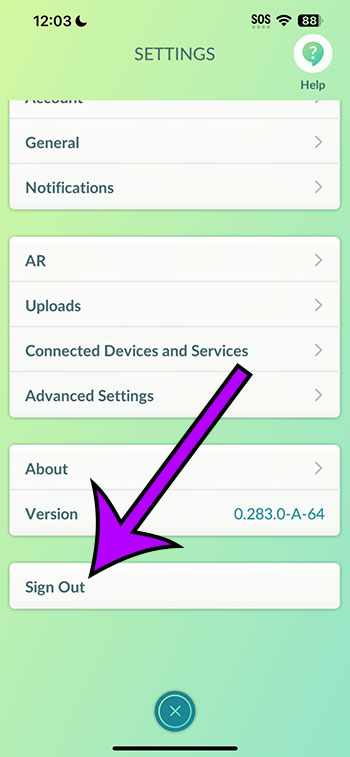
You will then be returned to the Pokemon Go initial login screen, where you can sign in with the same account or a different one. When you sign in again, the game will refresh and you will be able to play using the same account that you used to sign in.
When you sign out of Pokemon Go, numerous game settings, such as sound and music, will change. If you already disabled them, you must disable them again in the Settings menu.
If you use a Google account with two-factor authentication enabled, you may need to re-authenticate when you log in. The current Google settings for that device decide whether or not this occurs.
Related: How to Turn Off the iPhone 14 Pop Up Blocker
Pokemon Go Logging Out Video
More Details on Account Signing Out
You can access your account in a number of ways. A Google account, a Pokemon Trainer Club account, a Facebook account, an Apple ID, and others are examples. Regardless of the method you use to sign into your account, you will be able to select one of these options from the login screen.
Depending on how you previously stored your Google account information on your device, those credentials may or may not be kept when you sign in again. If you are unclear about your password or email address for a specific Go account, double-check that you have this information before signing out.
At the same time, many devices can be signed into the same account. However, when you perform particular in-game actions, such as catching a Pokemon, Go uses specific location information. You may encounter difficulties if the following activity is carried out in a geographical area that cannot be accessed in that timeframe.
Assume you’re logged in to your account in New York, and you catch a Pokemon. If a family member in Los Angeles also has an account and tries to catch a Pokemon 5 minutes after you, that Pokemon will flee. This is one of the anti-cheating strategies deployed by Niantic in the game.
While you can sign in and out of numerous accounts on the same device, you won’t be able to perform certain operations because they must all be active at the same time. This means that you can’t trade Pokemon between accounts on the same device.