You can enable the iPhone’s Unknown Senders filter by going to Settings> Messages > and toggling on the Filter Unknown Senders option.
Let’s paint a picture: You’re in the middle of your favorite song, grooving to the beat, when your iPhone buzzes. Excitement bubbles inside you. Is it that important email you’ve been waiting for? A sweet message from a loved one? You unlock your phone, only to find an email or message from… an unknown sender. Not just any unknown sender—a spammy one. Ugh! The disappointment is real.
Don’t worry! The iPhone, in all its technological splendor, has a solution for this. If you’ve ever wished you could just press a magic button and make all these annoying unknown messages disappear, you’re in for a treat.
You can also check out this video about how to filter unknown senders on iPhone for more on this topic.
Why Filter Unknown Senders?
Before we dive into the “how,” let’s talk about the “why.” Filtering unknown senders isn’t just about keeping your inbox tidy (although that’s a pretty great perk). It’s about protecting yourself. Some unknown senders might be genuine, but many might be phishing scams or unwanted advertisements. By filtering these senders, you safeguard your personal information and keep your digital space peaceful.
The iPhone’s Built-In Superpower: The Unknown Senders Filter
Good news! Your iPhone comes equipped with a feature specifically designed to help you handle unknown senders in your messages. When you enable it, messages from people not in your contacts will be sorted into a separate list, while the messages from your known contacts stay front and center.
Here’s how to do it:
- Open the Settings App. That familiar gear icon on your home screen? Tap it!
- Scroll Down and Tap on “Messages.” It’s usually a bit down the list, but you’ll find it.
- Look for the “Filter Unknown Senders” Toggle. Once you’re in the “Messages” menu, scroll down until you find this option.
- Switch it On! Tap the toggle, turning it green. You’ve now activated the filter!
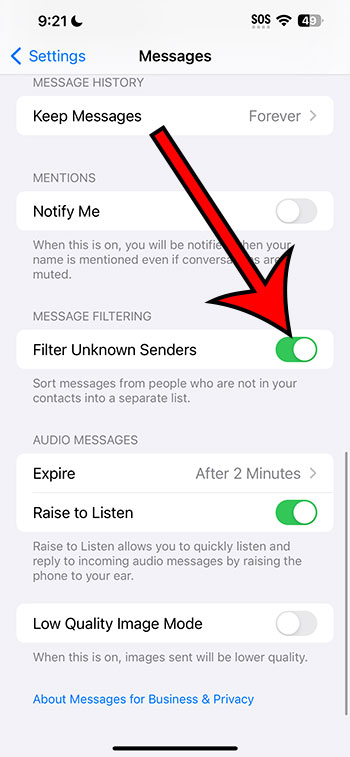
From now on, when you open your Messages app, you’ll see a Filters button at the top-left of the screen, which you can tap to access a menu where you can choose what you want to see. Only messages from your contacts will trigger notifications, keeping your phone buzz-free from spammers!
Video About Filtering Unknown iPhone Senders
But What About Email?
You’re thinking ahead—I like it! Yes, the “Unknown Senders” feature in the Messages app doesn’t cover emails. But don’t fret. The Mail app on your iPhone also has some tricks up its sleeve.
Here’s a simple way to filter emails from unknown senders:
- Launch the Mail App: Tap that envelope icon!
- Go to “Mailboxes”: This is typically in the top left corner.
- Tap “Edit”: This is in the top right corner.
- Select “VIP”: This allows you to prioritize emails from specific contacts.
- Add VIPs: Click “Add VIP” and select contacts you definitely want emails from.
Now, emails from your VIPs will stand out, making it easier to sift through the clutter.
Related: How to Turn iPhone 13 Read Receipts On and Off
A Few Things to Remember
- Safety First: Even with filters, always be cautious. If an unknown message or email looks suspicious, it’s better to delete it than risk opening a potentially harmful link.
- Regularly Check: While the “Unknown Senders” filter is super helpful, you might occasionally get a legitimate message from someone not in your contacts. It’s a good habit to skim through your “Unknown Senders” tab or non-VIP emails now and then.
- Stay Updated: Apple often introduces new features and improvements. Keep your iOS updated to benefit from the latest security and convenience tools.
Wrapping Up
Imagine a world where you have control over who gets your attention on your iPhone. Oh wait, you don’t have to imagine—that world is here! By taking a few simple steps, you can ensure your digital space is free of unwanted intruders. It’s not just about decluttering, it’s about taking charge of your peace of mind. So go ahead, take back your inbox, and enjoy the sweet sound of silence (or, you know, just your favorite song without interruptions). Happy filtering!