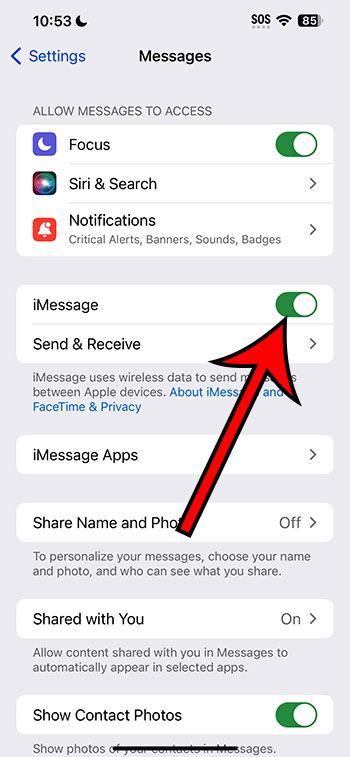
Enabling iMessage on an iPhone 14 is simple: head to ‘Settings’, find ‘Messages’, and toggle the iMessage switch on. Once activated, users can enjoy enhanced texting features, synchronization across Apple devices, and fun chat effects.
This guide continues below with more information about the iMessage feature and answers to questions you might have.
You can also check out this video about how to turn on iMessage on iPhone 14 for more on this topic.
Understanding iMessage: A Quick Dive
Apple’s iMessage is like the espresso shot of texting. It’s quick, reliable, and exclusively for Apple users. Imagine texting with a dash of personality— that’s iMessage for you. But how do you get this magic on your iPhone 14? Hold on to your tech hats because we’re diving in!
Why Bother with iMessage?
You might be thinking, “Why should I switch from standard texting?” Well, iMessage has its charm:
- Enhanced security features
- Fun animations and effects
- Seamless integration with other Apple devices
Sounds appealing, right? Let’s get to setting it up.
Related: What an iMessage Sent as Text Message on iPhone Means
Steps to Enable iMessage on iPhone 14
1. Start with Settings – Grab your iPhone 14 and tap on that gear-like icon titled ‘Settings’. It’s your portal to tweaking your phone’s universe.
2. Scroll Till You See ‘Messages’ – Within Settings, you’ll find an array of options. Fret not! Just swipe a bit until ‘Messages’ pops up.
3. The Grand Toggle – See the iMessage toggle switch? If it’s gray, it’s off. Swipe that switch to the right. Voilà! It should turn green, signaling that iMessage is on.
4. Wait a Moment – After you toggle, give your phone a moment. It’s like waking up; it needs a second to get things running. Once activated, you’re in the iMessage club!
5. Confirm with Your Apple ID – To ensure it’s really you, your iPhone might ask for your Apple ID credentials. It’s like a secret handshake to enter the iMessage party.
Pros of Using iMessage
- Synchronized Devices: Ever wanted to continue a chat from your MacBook or iPad? iMessage makes it a breeze.
- Data Usage: iMessage uses data, which might save you if you’re low on text messages (who has limited texts these days anyway?).
- Read Receipts: Know when someone’s seen your message. It’s a double-edged sword, but hey, knowledge is power!
Cons of Using iMessage
- Apple Exclusive: Your Android pals can’t join the iMessage fiesta.
- Requires Data or Wi-Fi: Without internet, iMessage reverts to standard SMS.
- Read Receipts: Yes, it’s here again. Sometimes, you just don’t want people to know you’ve seen their message. (Remember, you can turn this off!)
Video About iMessage
Additional Information
iMessage vs. SMS Ever noticed those blue and green bubbles? Blue means you’re using iMessage, while green signals standard SMS. It’s like a secret code for Apple users. Handy, right?
Customizing iMessage Dive into the ‘Messages’ settings, and you’ll find a treasure trove of customization options. Fancy effects, read receipts, and even message forwarding— personalize your chat experience!
The iMessage Ecosystem Apple is always innovating. Keep an eye out for more features and integrations, like Apple Pay Cash. Who knows what they’ll think of next?
In Conclusion
Enabling iMessage on your iPhone 14 is a piece of cake. With a few taps, you’re connected to a more dynamic, fun, and integrated messaging system. So why wait? Dive into the blue-bubble world and elevate your texting game.
FAQs
- Can I use iMessage internationally? Yes, as long as you have data or Wi-Fi. Remember, charges may apply based on your data plan.
- Is iMessage free? It uses your data or Wi-Fi, so while there’s no direct charge, data costs might apply.
- How do I know if my message was sent as an iMessage? Blue bubbles represent iMessage, green for standard SMS.
- What if I switch to an Android device? You’d lose iMessage features, and would need to deregister from iMessage to get texts properly on Android.
- Can I send an iMessage to someone with a non-Apple phone? Nope. It’ll revert to a standard SMS (the green bubble we talked about).