Change your iPhone 14’s ringtone by going to Settings > Sounds & Haptics > Ringtone > and then selecting a new option.
More information on changing iPhone ringtones is provided below, along with screenshots of the process.
This video will show you how to change the ringtone on an iPhone 14.
How to Change an iPhone 14 Ringtone
The steps in this post were completed on an iPhone 14 Plus running iOS 17.
These methods work for the vast majority of additional iOS versions and iPhone models, including the ones listed below:
- iPhone 14
- iPhone 14 Pro
- iPhone 14 Pro Max
Step 1: Open the Settings app from your Home screen.
Step 2: Scroll down a little and click Sounds & Haptics.
Step 3: From the menu, choose Ringtone.
Step 4: Select a ringtone for your phone.
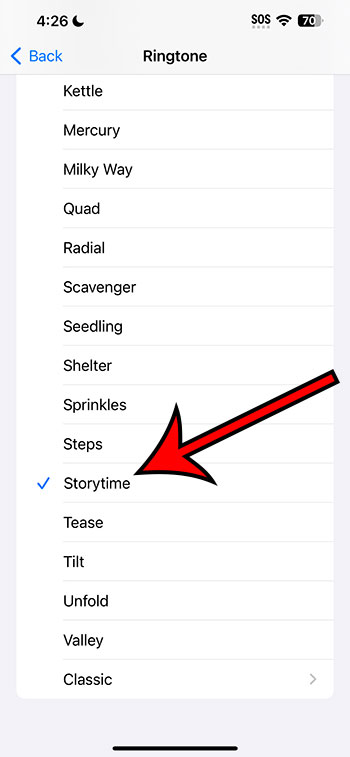
It’s worth mentioning that when you choose a ringtone, a sample of it will play, so do so in a private or quiet area.
You won’t have to settle for the default ringtone if you know how to utilize an alternative ringtone on iPhone 14.
This setting has no effect if you have personalized ringtones for your contacts. Those contact ringtones will remain the same.
Changing the Ringtone on Your iPhone (Video)
Summary – Changing the Ringtone on an iPhone
- Navigate to the Settings menu.
- Select Sounds & Haptics.
- Click the Ringtone button.
- Choose the new ringtone you want to use.
Related: How to Change the Alarm Sound on an iPhone
Conclusion
If you don’t usually leave your phone on quiet, your iPhone’s ringtone is a useful function.
If your current ringtone is difficult to hear or sounds too similar to other people’s ringtones, you should consider changing it.
Fortunately, you can change your iPhone’s ringtone at any time, and you can even purchase music or custom ringtones from the iTunes Store.
Hopefully, our tutorial above has provided you with everything you need to know about using a new ringtone on iPhone 14.
You may always return to this menu and adjust it once you’ve learned how to edit this setting on your phone, as well as many of the other sound settings available.