You may change the sound of your iPhone alarm by heading to Clock > Alarm > Edit and selecting the alarm, then hitting Sound, selecting a new sound, clicking the Back button, and finally touching Save.
Our explanation continues below with more information on changing the sound of your iPhone’s alarm, including screenshots of the procedure.
For more details, see this video on how to change the alarm sound on an iPhone.
How to Change the Alarm Sound on Your iPhone
The steps in this post were completed on an iPhone 14 Plus running iOS 17.
These methods will also work on many other versions of iOS and iPhone models, including those listed below:
- iPhone Mini
- iPhone Pro
- iPhone Pro Max
Step 1: Find and choose the Clock icon from your Home screen.
Step 2: Select the Alarm tab at the bottom of the screen.
Step 3: Select Edit in the top-left corner.
Step 4: Select the alarm you want to modify.
Step 5: Go to the Sound tab.
Step 6: Choose the alarm sound, then press the Back button in the top-left corner of the screen.
When you select it, you will hear an alarm sound sample.
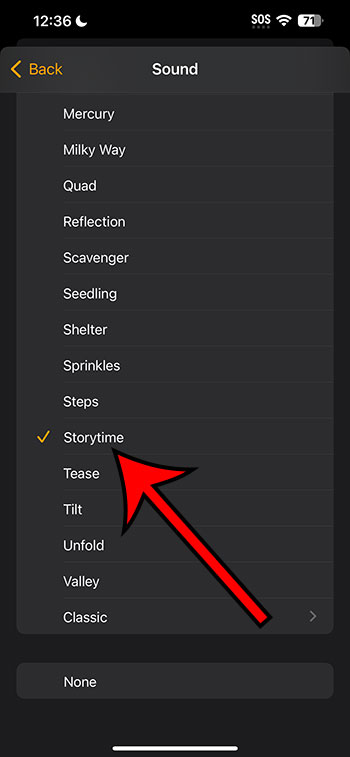
Step 7: Tap Save in the upper-right corner of the screen.
Now that you know how to change alarm sound on iPhone, you will be able to tweak your alarms in the future so that the sound you hear is one you like or that does a better job of catching your attention.
Change the Alarm Sounds in a Video
In Summary, Changing the Alarm Tone on Your iPhone
- Start by pressing the Clock button.
- Choose Alarm.
- Select Edit.
- Select an alarm.
- Select the Sound option.
- Choose a sound and then press the Back button.
- Select the Save option.
Related: How to Disable iPhone 14 Vibration
Conclusion
When you set an alarm on your iPhone, you can select the sound that will play when the alarm goes off.
If you’re like me, you might not think about it and just go with the default option.
When you use the alarm, though, you may come to dislike the sound or discover that it isn’t as effective as you would like.
Fortunately, you can adjust the sound of your smartphone’s existing alarms.
Hopefully, our post on how to change alarm sound on iPhone above has helped you alter the settings for an existing alarm to use a sound you like.